A webcam or smartphone can be the starting point for markerless motion capture. AImation Studio supports both types of input, with single-camera and multi-camera workflows. You do not need a mocap suit to begin, but a repeatable recording setup makes the result easier to evaluate.
Choose a manageable first test
Use a short performance with a clear beginning and end. A simple step, turn or reach lets you check framing and inspect the motion without recording a long session. Pick an action that resembles something you need in your game or animation project.
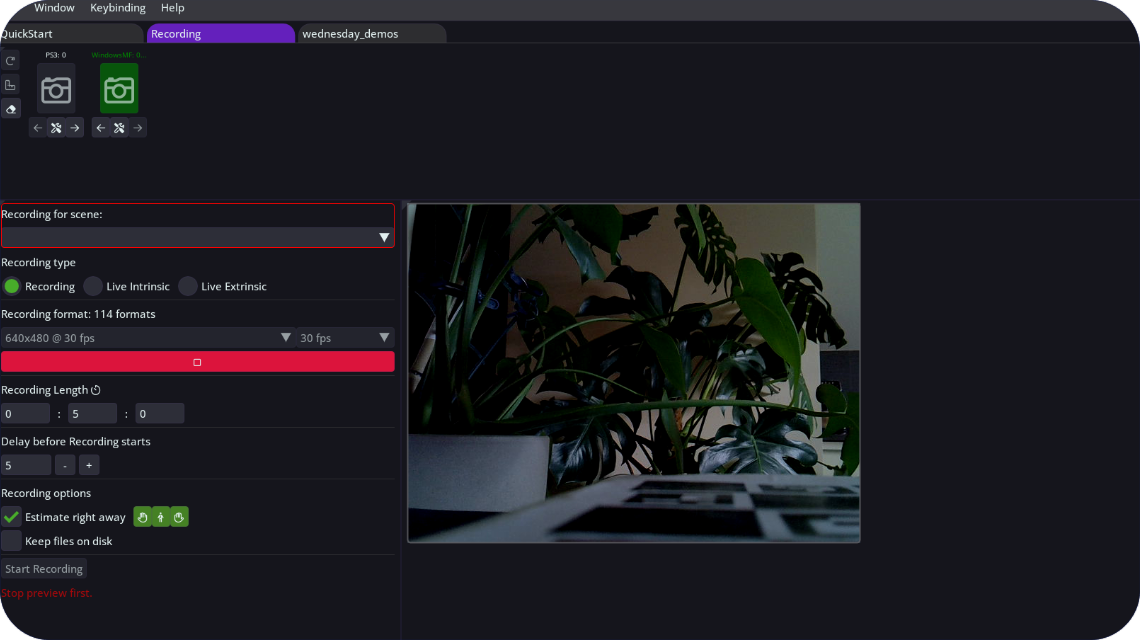
Place the camera so the relevant movement stays in view. Avoid cutting off the hands or feet when they matter to the performance. Keep the camera stable and review the input before starting the full recording.
One camera or several?
Single-camera capture keeps the initial setup smaller and is a useful place to learn the workflow. AImation Studio also supports distance-to-camera estimation in single-camera mode. This is part of the motion-estimation workflow, not a promise that every recording will need no cleanup.
Use a multi-camera setup when the project benefits from additional views. More devices also mean more setup work. Follow the multi-device and calibration tutorials, and test the arrangement before recording a complete take.
Check body and hand movement separately
Look at the full-body result first, then inspect the hands where they contribute to the action. AImation Studio supports hand estimation and a separate hand-animation workflow. You can combine separately captured hand animation with other motion during post-processing.
If a part of the performance is difficult to read in the recording, adjust the setup and make another short test. Do not rely on post-processing to recover movement that was not captured clearly.
Before recording a longer session
- Confirm that the application receives the intended camera input.
- Check that the performance fits inside the frame.
- Process a short take locally and inspect the resulting movement.
- Try the cleanup steps and export path you plan to use.
- Save your working setup before moving on to a longer take.
Camera compatibility and configuration matter; support for webcam and smartphone input does not mean every camera works in every arrangement. Use the current setup tutorials for device instructions. The download page contains the application and available connectors.