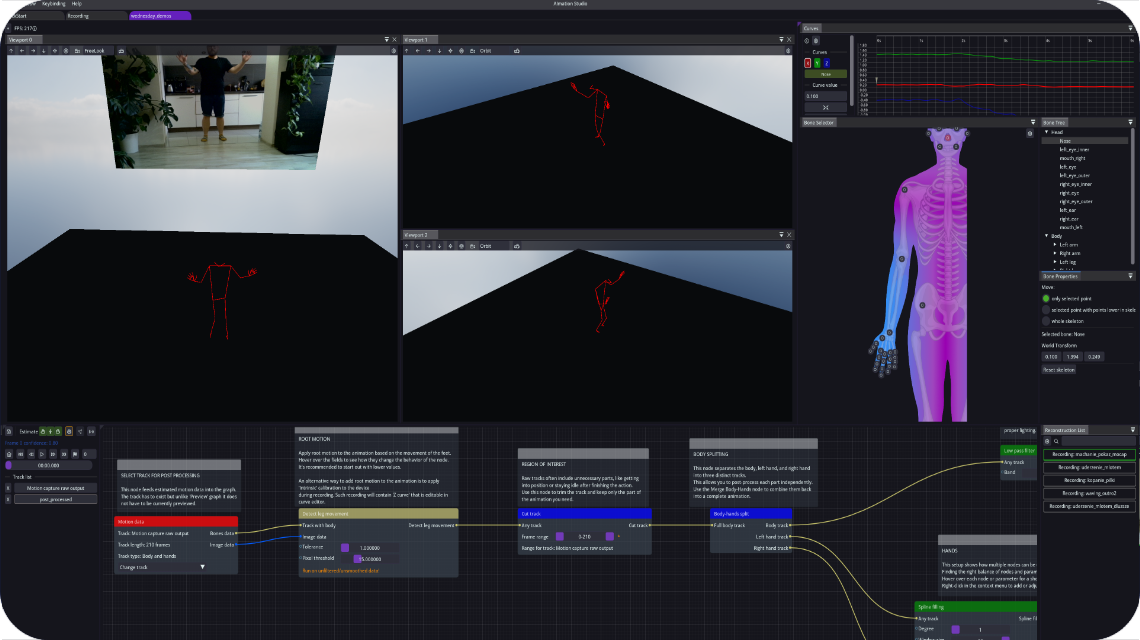
Capturing a performance is the beginning of the animation workflow. Before exporting motion, inspect the result and decide which parts need cleanup. AImation Studio provides a node-based post-processing workflow with smoothing, cutting, merging and bone anchoring.
Start with the useful part of the take
Play through the captured motion and identify the section you intend to use. Cutting away the lead-in and the end of a take makes it easier to focus on the action. Check that the selected segment contains the transitions your character needs.
Apply smoothing with a clear purpose
Smoothing can reduce unwanted motion noise. Review its effect on the actual action: a movement should remain readable after cleanup. Pay particular attention to quick changes in direction and deliberate hand gestures, rather than treating every variation as an error.
Combine motion and inspect contact points
Animation merging lets you combine motion data, including separately captured hand animation. After combining sources, check the transition and the relationship between the hands and the body.
Manual and automatic bone anchoring are available for stabilising selected bones where required. Use them as part of a reviewed cleanup process. A tool being available is not a guarantee that every foot contact or interaction will be correct without inspection.
Choose the delivery path your project needs
AImation Studio supports FBX and BVH export. Choose the format supported by your target application's animation workflow. Import a short test into the destination project and check scale, orientation and character retargeting before exporting a full session.
Exporting motion data does not guarantee that it will match every character rig automatically. The destination application's import and retargeting setup remains part of the process.
For streaming workflows, AImation Studio offers WebSocket streaming and an Unreal Engine Live Link integration. Use the connector version and installation instructions relevant to your project; do not assume that one plugin package supports every engine version.
Evaluate the final character motion
Review the result on the character and in the context where it will be used. Check the action's beginning and end, changes in direction, hands and any important contact points. Keep the source recording available so you can compare the processed motion with the performance.
Continue with the post-processing and integration tutorials, or find available application and connector packages on the download page.