Local motion capture turns a recorded performance into motion data using your own computer. In AImation Studio, motion estimation and processing run on a Windows PC using GPU or CPU resources. You can capture full-body and hand movement with webcams or smartphones, refine the result and deliver it to a 3D workflow.
Why we built AImation Studio
AImation Studio grew out of a problem we faced while making our own game: the animation work we needed was difficult to fund within our budget. We started building a motion capture tool to help create those animations ourselves. Our team had met through the World of Warcraft modding community, and the project brought that programming experience to a practical game-development problem.
Development dates back to 2022. The first application entry in our changelog is dated 2 August 2022. That history shapes our focus on capturing movement with accessible cameras and refining it for a 3D workflow. Read more about the team or explore the application changelog.
What stays on your computer?
Your source footage does not need to be uploaded to a cloud motion-processing service. The estimation work happens locally, without a remote processing queue or a balance of processing tokens. This is useful when you want to keep an unreleased character performance inside your production environment.
Local motion processing does not mean the application has no network functionality. Account activation, license services and updates may use an internet connection. Keep that distinction in mind when planning a workstation or a studio network.
A practical capture-to-export workflow
- Capture: prepare a webcam or smartphone and record a short performance. Choose a single-camera or multi-camera setup for the task.
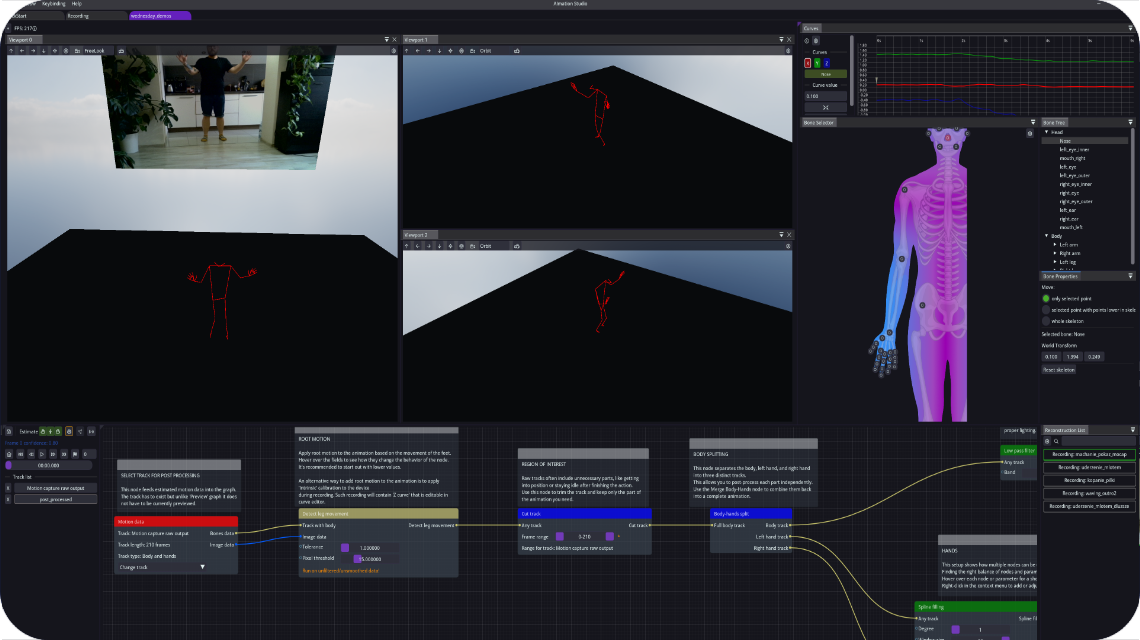
- Estimate: process body and hand movement on your PC. The time required depends on your hardware and the recording.
- Refine: inspect the result, smooth unwanted motion noise, cut the useful segment and apply the post-processing steps it needs.
- Deliver: export FBX or BVH, or use a supported streaming integration for your destination application.
Local processing still needs a careful recording
Start with an uncluttered camera view, steady framing and enough room to keep the relevant body movement visible. Record a short test before capturing a full performance. Check the resulting motion in the application rather than assuming that a successful recording guarantees a finished animation.
A single camera can be a practical starting point. More cameras can give additional views when your project calls for them, but the setup and calibration also need attention. Follow the relevant camera tutorials instead of treating every camera arrangement as interchangeable.
Try the complete workflow
Choose a short action that represents your actual project. Capture it, inspect the motion, refine it and test the export on your character. That gives you a more useful evaluation than looking only at a tracking preview.
Download AImation Studio, follow the setup tutorials and visit your account for license availability. See the FAQ for local processing, camera and export questions.